PhotoTriage
A local web app that shows one photo at a time, allows you to make one decision per photo, and then copies or moves the kept photos into a folder of their own.
My New Hobby: Photography
Recently, I took up photography as a hobby, and every time I go somewhere nice, I take a lot of photos. The problem is that most of them are not good enough to keep, and I have to spend a lot of time reviewing them and filtering out the bad ones, especially when I come back with a pile of 500. That’s when I realized that I needed a faster way to review my photos and decide which ones to keep.
I know there are many photo management apps out there, and some of them are very good. But they do far more than I need. I wanted something simple and fast that does one thing and runs on my own machine. So I decided to build my own.
What PhotoTriage Is
PhotoTriage is a local web app. It shows one photo at a time, lets you make one decision per photo (keep or discard), and then moves or copies the kept photos into a folder of their own. This way, I can go through a whole shoot quickly and keep only the photos that are worth keeping.
Demo video.
How a Review Works
You open a folder of photos in PhotoTriage, and it shows you every photo, one at a time. The right arrow keeps the photo and the left arrow discards it, just like Tinder.
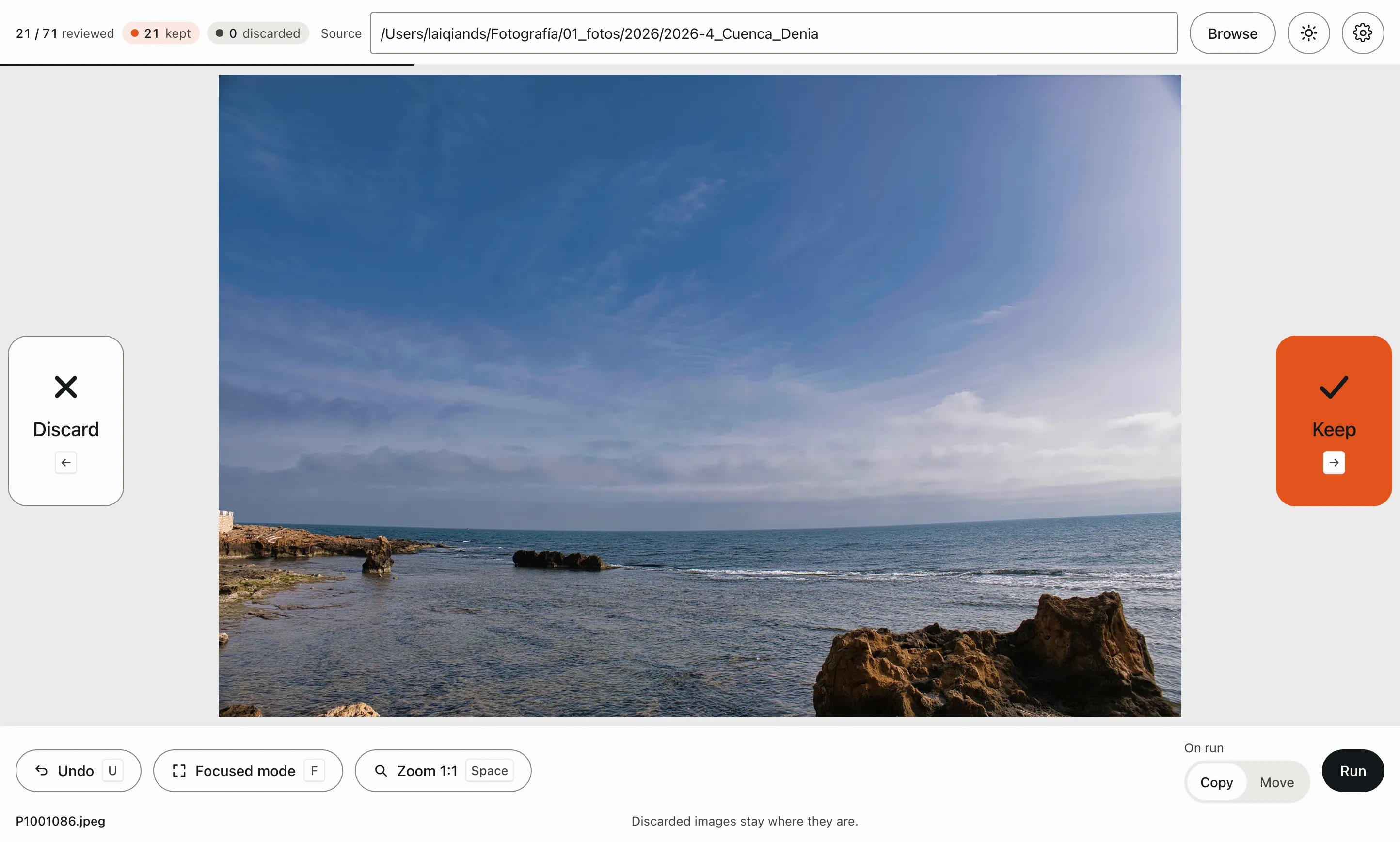
Two more keys help you judge a photo. The Space bar shows it at 1:1 scale, so you can check if it is really sharp. The F key enters focused mode, where the photo takes the whole window and the controls get out of the way.
Once you’ve made your decisions, you choose copy or move and press Run. By default, the kept photos go to a new folder next to the original one, with _keep added to its name.
RAW files travel with the photo
If you shoot RAW + JPG, you review the JPG and the RAW follows it. Keep IMG_0042.JPG, and IMG_0042.CR2 goes to the same folder. Discard it, and both stay where they were.
What It Guarantees
It never deletes a file
One thing that would really piss me off is losing a photo that I wanted to keep. So PhotoTriage never deletes a file. The only thing it is allowed to do is move or copy the kept photos into a separate folder. The discarded photos always stay in their original location. It never overwrites a file either: if a name is already taken in the destination, the new file gets a number.
Nothing leaves your machine
Everything happens on your machine. The server listens on 127.0.0.1 only, and there is no option to change that. No photo and no folder name is sent anywhere, because I don’t want my photos to end up in the cloud.
Your decisions are saved to a file on your disk as you make them, so you can close the app and continue later.
What It Doesn’t Do
- It doesn’t open HEIC files, so iPhone photos in the default format won’t show up.
- It doesn’t show RAW files on screen. A folder with only RAW files has nothing to review.
- It doesn’t compare two photos side by side.
- Undo takes back the most recent decision. To change an older one, you have to undo everything after it.
Try It
PhotoTriage runs from a terminal. You need Python 3.12 or later and uv:
git clone https://github.com/LaiqianDS/phototriage.git
cd phototriage
uv sync
uv run phototriage ~/Pictures/2024
Then open http://127.0.0.1:8000 in your browser.
The PhotoTriage site has the full tour.